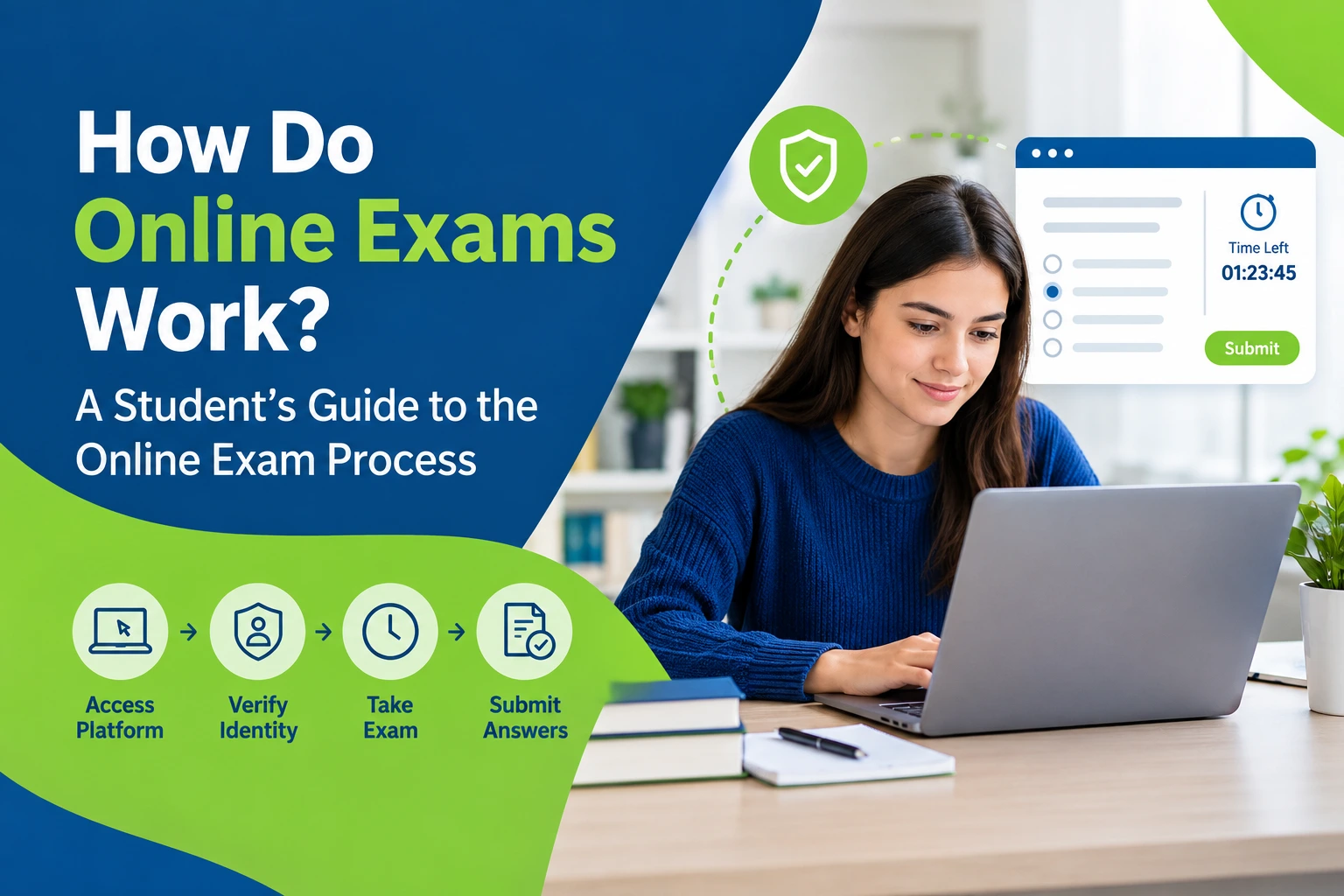
How Do Online Exams Work: Online exams have become a common part of college and university education. Students can complete assessments from home, access questions through a learning platform, and submit their answers without visiting a physical examination hall. However, if you have never taken an online test before, you may have questions about the process, technical requirements, and exam monitoring.
How do online exams work, and what should you expect before starting one? The answer depends on your school’s examination platform and the type of proctoring system your instructor uses.
This guide explains the online exam process step by step, from scheduling and system checks to submitting your answers and handling technical problems. By understanding how the system works, you can prepare your device, manage your time, and approach your next online examination with greater confidence.
What Is an Online Examination System?
An online examination system is a digital platform that allows educational institutions to create, administer, monitor, and grade tests over the internet. These systems are used for quizzes, midterm examinations, final exams, professional assessments, and other academic evaluations.
Most online examinations involve two main components: a learning management system and, when required, proctoring software.
Learning Management System (LMS)
A Learning Management System is the platform where students access their courses, assignments, learning materials, and examinations. Common examples include Canvas, Blackboard, Moodle, and Brightspace.
During an online exam, the LMS may display questions, record your answers, show the remaining time, and submit your completed assessment. Some platforms also allow instructors to review submissions and provide grades or feedback.

Online Proctoring Software
Online proctoring software provides additional supervision during an examination. Depending on the institution’s requirements, the software may restrict browser activity, record your webcam, monitor your screen, or connect you with a live proctor.
Examples include Respondus LockDown Browser, Honorlock, and Proctorio.
The exact features vary between platforms and exam settings. Some examinations require only a secure browser, while others involve identity verification, webcam monitoring, and a room scan.
Understanding which systems your institution uses can help you prepare before your exam begins.
How to Prepare for Each Part of an Online Exam Platform
Preparing for an online examination involves more than reviewing your study notes. You should also understand the software, check your equipment, and become familiar with the examination rules.
1. Learn How Your LMS Works
How Do Online Exams Work: Before exam day, log in to your university’s learning management system and locate the examination section. Familiarize yourself with the interface, navigation buttons, submission process, and available instructions.
If your exam contains multiple-choice questions, written responses, tables, or calculations, knowing how to navigate the platform can save valuable time.
Check whether your instructor allows you to move between questions or return to previous answers. Some exams restrict navigation after you submit a response.
2. Understand the Proctoring Software
Different proctoring tools have different requirements. A secure browser may prevent you from opening other applications or websites, while a monitoring system may record certain activities for later review.
Read the instructions provided by your school before installing or launching any examination software.
Check whether you need to download a browser extension, install a dedicated application, enable your webcam, or grant screen-recording permissions. Complete these steps before the scheduled exam whenever possible.
3. Complete Identity and Room Verification
Some online proctored exams require students to verify their identity using a government-issued photo ID. Others may require a webcam scan of the examination area.
Make sure your camera works, your identification is available if requested, and your room meets the examination guidelines.
Completing the required checks before the timer starts can prevent unnecessary delays.
4. Understand the Timer and Submission Rules
Online examinations commonly display a countdown timer. Depending on the platform, the test may submit automatically when the time expires.
Review the examination instructions to determine whether you must submit your answers manually or whether the system handles submission automatically.
Do not assume that the platform will provide additional time after the deadline.
5. Check Background Applications and Browser Activity
Some examination systems restrict access to other applications, browser tabs, or external websites. Programs running in the background may also interfere with the software or violate the examination rules.
Close applications that your institution prohibits before beginning the test. If you are allowed to use external resources, follow the specific instructions provided by your instructor.
6. Understand How Answers Are Saved
Some platforms save responses automatically as you work, while others may require you to save or submit answers manually.
Check the platform’s instructions before the exam. If a technical problem occurs, avoid repeatedly refreshing the page or closing the browser without guidance from your institution.
Understanding the saving process can help you respond appropriately if your connection becomes unstable.
Understanding the Six Main Components of an Online Exam
Although examination platforms differ, most online exams include several common features.
Learning Management System
The LMS delivers examination questions, records responses, displays instructions, and may provide a countdown timer. It also serves as the central location for accessing and submitting the assessment.
Proctoring Software
Proctoring software helps institutions supervise examinations. Depending on the settings, it may restrict browser functions, monitor screen activity, record video, or connect students with a live supervisor.
Identity and Room Verification
Identity verification confirms that the person taking the exam meets the institution’s requirements. Room verification may be used to check that the examination environment complies with the stated rules.
Timer and Automatic Submission
The timer indicates how much time remains. Some platforms automatically submit an exam when the countdown reaches zero, while others require students to submit their work before the deadline.
Activity and Browser Monitoring
Certain systems record events such as leaving the examination window, switching tabs, or attempting to open restricted applications. The information collected depends on the software and the settings selected by the institution.
An activity record does not necessarily mean that a student has violated a rule. Institutions may review recorded events to determine what happened.
Answer Saving and Recovery
Many platforms save responses periodically or automatically. However, saving behavior can vary, and an internet disconnection may prevent the latest changes from reaching the server.
Always confirm how your examination platform handles saved answers before starting.
The Online Exam Process: Step by Step
Knowing what happens during an online examination makes it easier to prepare for each stage. The following steps describe a typical process, although your institution may use a different sequence.
Step 1. Enrollment and Exam Scheduling
Your instructor or institution sets the examination date and availability window. Some exams must be completed at a specific time, while others allow you to begin at any point within a designated period.
You may receive the examination link through your LMS or an email notification.
Check the date, starting time, time limit, and deadline carefully. If your exam is scheduled in a different time zone, confirm the correct local time.
Step 2. System and Equipment Check
Before the exam begins, you may need to complete a technical check. This can include testing your internet connection, webcam, microphone, browser, and examination software.
Make sure your device meets the platform’s requirements. Install any required updates in advance and close applications that the examination rules prohibit.
If the system check fails, follow the troubleshooting instructions provided by your institution rather than waiting until the exam is about to start.
Step 3. Identity Verification
For a proctored exam, you may be asked to confirm your identity. This process can involve showing a photo ID to your webcam, taking a photograph, or following instructions from a live proctor.
Follow the platform’s instructions carefully and ensure your face and identification are visible when requested.
Not every online examination requires identity verification, so check your exam instructions beforehand.
Step 4. Environment Scan
Some online proctored exams require students to show their surroundings using a webcam.
You may be asked to move the camera around your desk or room so the system or proctor can check whether the examination area follows the rules.
Remove unauthorized materials and additional devices from your workspace before beginning. Keep the room quiet and make sure other people will not interrupt the examination.
Step 5. Starting and Completing the Exam
After completing the required checks, you can access the examination questions.
Read the instructions before answering. Pay attention to the time limit, question format, permitted resources, navigation restrictions, and marks allocated to each section.
Work through the questions carefully while keeping track of the remaining time. If the platform restricts movement between questions, review each response before continuing.
During a proctored exam, follow the monitoring requirements and avoid actions that your institution prohibits.
Step 6. Submitting Your Answers
When you finish, use the submission button if the platform requires manual submission. Wait for confirmation that your answers have been submitted successfully.
If the system automatically submits the examination, check the instructions to understand what happens when the timer expires.
Do not close the examination window until you have received the appropriate submission confirmation, unless the platform or your institution instructs you otherwise.
Step 7. Review and Grading
After submission, multiple-choice questions may be graded automatically. Written answers, essays, and other subjective responses may require review by your instructor.
For proctored exams, recorded activity may also be reviewed if the software identifies an event that requires further examination.
A monitoring alert is not necessarily proof of misconduct. If you experience a technical issue or believe an activity has been recorded incorrectly, contact your instructor and provide an accurate explanation.
Online Exam Requirements: What You Need Before You Start
Preparing your equipment in advance can reduce technical problems and help you begin on time.
Before your examination, check the following requirements:
- A compatible laptop or desktop computer that meets the platform’s specifications.
- A stable internet connection that can support the examination software.
- An updated browser, such as Chrome or Firefox, if supported by your institution.
- A working webcam and microphone when required.
- A valid photo ID if identity verification is part of the examination.
- The required examination application, browser extension, or secure browser.
- A fully charged device or access to a reliable power supply.
- A quiet, private, and well-lit examination area.
- A single monitor if required by your examination rules.
- Any permitted materials or resources specified by your instructor.
Requirements differ across platforms and institutions. Check the official instructions for your particular exam instead of assuming that every online test uses the same settings.
The Three Types of Online Proctoring
Online proctoring refers to different methods used to supervise remote examinations. Knowing which type your institution uses can help you understand what to expect.
1. Live Online Proctoring
In live online proctoring, a human supervisor monitors students during the examination through a webcam or another approved monitoring method.
The proctor may verify your identity, check your examination environment, and observe your session. Depending on the system, you may also be able to ask the proctor for assistance with permitted technical issues.
Students should follow the supervisor’s instructions and remain within the approved examination environment.
2. Record and Review Proctoring
With record and review proctoring, the system records some or all of the examination session. A supervisor may review the recording afterward, particularly when an event requires further investigation.
This approach may not involve a person watching the student continuously throughout the test.
The types of activity recorded depend on the software and the settings configured by the institution.
3. Automated Proctoring
Some platforms use automated monitoring to identify activity that may require attention. Depending on the system, this may include changes in browser focus, webcam observations, or other recorded events.
Automated alerts may be reviewed by a human supervisor before a decision is made. The exact monitoring capabilities and review procedures vary between providers.
Read your institution’s privacy information and examination rules to understand what data may be collected and how it is used.
Online Exam Rules You Need to Know
Online exam rules are designed to maintain a fair and consistent testing environment. Although specific requirements vary, common rules may include the following:
- Remain within the camera frame and examination area when required.
- Do not leave the room unless the examination instructions permit it.
- Avoid speaking during the exam unless reading aloud or speaking is allowed.
- Keep unauthorized phones, tablets, and other devices away from your workspace.
- Do not allow other people to enter the examination area if the rules prohibit it.
- Do not use unauthorized notes, books, websites, or browser tabs.
- Keep the examination window open and follow the approved software instructions.
- Do not disable or interfere with required monitoring software.
- Follow the permitted communication and assistance rules.
- Report technical problems to the appropriate support team or instructor.
Always read the rules for your specific examination. An open-book exam may permit certain reference materials, while a closed-book exam may prohibit them entirely.
Timer and Pacing: What Happens During an Online Exam?
Most timed online examinations display the remaining time on the screen. When the deadline arrives, the platform may automatically submit your work or prevent you from making further changes.
The best way to manage the timer is to understand the question formats and plan your time before answering.
For example, a multiple-choice section may require less time per question than an essay or a problem involving several calculations. Your actual pace should depend on the difficulty of the questions and the marks available.
How to Manage Your Time During an Online Test
First, review the instructions and note the total time available. If the platform allows you to view all questions, check the overall structure before starting.
Next, allocate time according to the marks and complexity of each section. Avoid spending too long on a difficult question while leaving easier questions unanswered.
Keep a small amount of time available at the end to review your responses, check calculations, and confirm that all required sections are complete.
Understand No Backtracking Mode
Some examinations use a no backtracking setting. This means that once you submit an answer or move to the next question, you may not be able to return to the previous one.
If your exam uses this feature, read each question carefully before proceeding. Review your answer and make sure you are comfortable with your selection before clicking the next button.
Do not assume that every online exam allows you to revisit earlier questions.
Preparing for Calculation-Based Questions
Mathematics, statistics, finance, and chemistry exams may include calculations that require several steps.
Review the relevant formulas, practise similar problems before the exam, and check whether calculators or other resources are permitted.
During the test, organize your working clearly and monitor how much time you spend on each problem. Preparing in advance can help you work more efficiently when the timer is running.
What to Do If Your Internet Drops During an Online Exam
An internet disconnection during a timed examination can be stressful, especially when you are unsure whether your answers have been saved. The appropriate response depends on your examination platform and your institution’s instructions.
Follow these steps if your connection fails.
Step 1. Avoid Closing the Examination Immediately
If the page becomes unresponsive or the connection drops, do not immediately close the browser or restart your computer.
Your platform may have stored some answers locally or saved them to the server. Closing the application without guidance could make recovery more difficult.
Follow any recovery instructions displayed by the examination system.
Step 2. Record the Technical Problem
If possible, take a screenshot showing the error message and the time of the incident. Avoid capturing or sharing examination questions if doing so would violate your institution’s rules.
Keep a record of what happened, including when the connection failed and what you did afterward.
This information may help your instructor or technical support team investigate the issue.
Step 3. Check Your Internet Connection
If the examination software allows troubleshooting, check whether your Wi-Fi connection is working.
You may be able to reconnect to your existing network or use an approved wired connection. However, do not switch networks or devices if your examination rules prohibit it or if the platform requires you to remain connected in a specific way.
If you are unsure what to do, contact the designated support team as soon as possible.
Step 4. Follow the Platform’s Recovery Instructions
Some systems allow students to resume an examination after reconnecting. Others require a supervisor or instructor to restore access.
Avoid repeatedly refreshing the page, force-closing the application, or restarting the device unless the official instructions recommend doing so.
If you cannot regain access, contact your instructor and explain the problem.
Step 5. Report the Incident Promptly
Send your instructor or examination support team a message describing the disconnection. Include the time it occurred, the error message, and any relevant screenshots that you are permitted to share.
Ask whether your examination can be resumed or whether another arrangement is available.
Reporting the issue promptly gives the institution a clearer record of the incident and helps the appropriate team determine the next steps.
Common Online Exam Mistakes That Can Cost You Points
Even well-prepared students can lose marks because of avoidable mistakes. Understanding common problems can help you prevent them.
Ignoring the Examination Instructions
Students sometimes begin answering questions without reviewing the rules, permitted resources, or submission requirements.
Read the instructions first. Pay particular attention to the time limit, question navigation, calculator permissions, and any restrictions imposed by the proctoring software.
Forgetting to Close Restricted Applications
Some secure examination systems require particular applications to be closed before the test begins.
Check the software instructions and close any prohibited applications completely rather than leaving them running in the background.
Do not attempt to disable monitoring features or bypass the platform’s restrictions.
Mismanaging the Available Time
Spending too much time on one question can leave insufficient time for the rest of the examination.
Review the mark distribution, estimate how much time each section deserves, and keep an eye on the countdown timer.
If you are unsure about an answer, follow the examination’s navigation rules and move on when permitted.
Failing to Check Answer Saving and Submission
A student may finish the questions but forget to submit the examination manually.
Before leaving the platform, confirm that the submission process is complete. If your exam saves answers automatically, remember that saving responses and submitting the final examination may be two separate actions.
Using Unauthorized Resources
Open-book and closed-book examinations have different rules. Do not assume that notes, websites, calculators, or other applications are permitted simply because you are taking the test online.
Check the instructions and use only the resources approved by your instructor.
Ignoring Technical Problems
Waiting until after the exam deadline to report a serious technical issue can complicate the investigation.
If a problem prevents you from continuing, document it when possible and contact the appropriate support team promptly.
How to Take an Online Exam: Pre-Test Checklist
Use this checklist before your next online examination.
- Confirm the exam date, starting time, and deadline.
- Check the examination instructions and permitted resources.
- Make sure your computer is compatible with the platform.
- Test your internet connection and power supply.
- Update the required browser and examination software.
- Test your webcam and microphone if they are required.
- Complete any available system checks before exam day.
- Prepare your identification if identity verification is required.
- Arrange a quiet examination area that follows the rules.
- Close applications that the examination software prohibits.
- Understand the timer, navigation settings, and submission process.
- Locate the correct technical support contact in case something goes wrong.
Completing these checks in advance can reduce last-minute stress and help you focus on answering the questions.
Conclusion
Understanding how online exams work can make the examination process more manageable. Most online examinations involve accessing a learning management system, completing any required technical and identity checks, answering questions within a set time limit, and submitting your work for grading.
Proctored exams may also include browser restrictions, webcam monitoring, room verification, and activity recording. The exact requirements depend on the institution and the software being used.
Before your next test, review the instructions, check your equipment, understand the submission process, and prepare a plan for managing your time. If a technical issue occurs, follow the platform’s recovery guidance and report the problem promptly.
With the right preparation, you can reduce avoidable mistakes and approach your online examination with a clearer understanding of what to expect.
Frequently Asked Questions
1. How do online exams work?
Online exams are conducted through a digital examination platform or learning management system. Students log in, complete any required system checks, answer questions within the allowed time, and submit their responses. Some exams also use proctoring software to monitor activity or verify student identity.
2. Does switching tabs always end an online exam?
No. The result depends on the examination platform and its settings. A secure browser may prevent students from switching tabs, while another system may record the activity for review. Follow your institution’s instructions and avoid leaving the examination window unless permitted.
3. What happens if I run out of time during an online exam?
Some platforms automatically submit your answers when the timer expires. Other systems may prevent further changes or follow a different submission procedure. Check the instructions before starting and try to leave enough time to review and submit your work.
4. Can a dropped internet connection affect my online exam?
Yes. A connection failure may interrupt your access to the examination or prevent recent answers from being saved. Some platforms support recovery, while others require assistance from an instructor or proctor. Follow the official recovery instructions and report the problem promptly.
5. Do all online exams require webcam monitoring?
No. Some online exams are completed without webcam monitoring. Others require a webcam, microphone, identity verification, or a recorded session. Your institution determines which requirements apply to your examination.
6. What is no backtracking mode in an online exam?
No backtracking mode prevents students from returning to questions they have already answered or passed. The exact behavior depends on the platform and exam settings. Read each question carefully before moving forward if this feature is enabled.
7. Can I use notes during an online exam?
You can use notes only when the examination instructions permit them. Open-book exams may allow specified books, notes, or online resources, while closed-book examinations generally restrict access to such materials. Always follow the rules for your particular test.
8. Do you need a camera for online exams?
A camera is not required for every online exam. However, proctored examinations may require a working webcam for identity verification, room scans, or monitoring. Check your exam requirements and test your camera before the scheduled start time.
9. What should I do if my school’s proctoring software does not work?
Check the platform’s official troubleshooting instructions, confirm that your device meets the requirements, and verify that the required permissions are enabled. If the problem continues, contact your school’s technical support team or instructor. Avoid repeatedly restarting the examination or changing settings without guidance.
10. How can I prepare for a proctored online exam?
Review your course material, understand the examination rules, test your device and internet connection, install the required software, and complete any available system checks. Make sure you know how the timer, question navigation, monitoring requirements, and submission process work before beginning the exam.